

Now launching · iPhone & iPad · iOS 17+

Turn your iPhone into a streaming server.

Drop in any video and DropPlay serves it over your own Wi-Fi — scan a code to watch on any laptop, tablet, or TV. Or play it on your phone and AirPlay to the big screen. No cloud, no accounts.

  • Wi-Fi streaming
  • Scan to watch
  • AirPlay
  • No cloud
DropPlay library showing a saved video
DropPlay playing a video of Earth from space with AirPlay, Share to LAN, and Play controls

What it does

Four taps from shared file to big screen.

Everything DropPlay does, shown on the screens you’ll actually use.

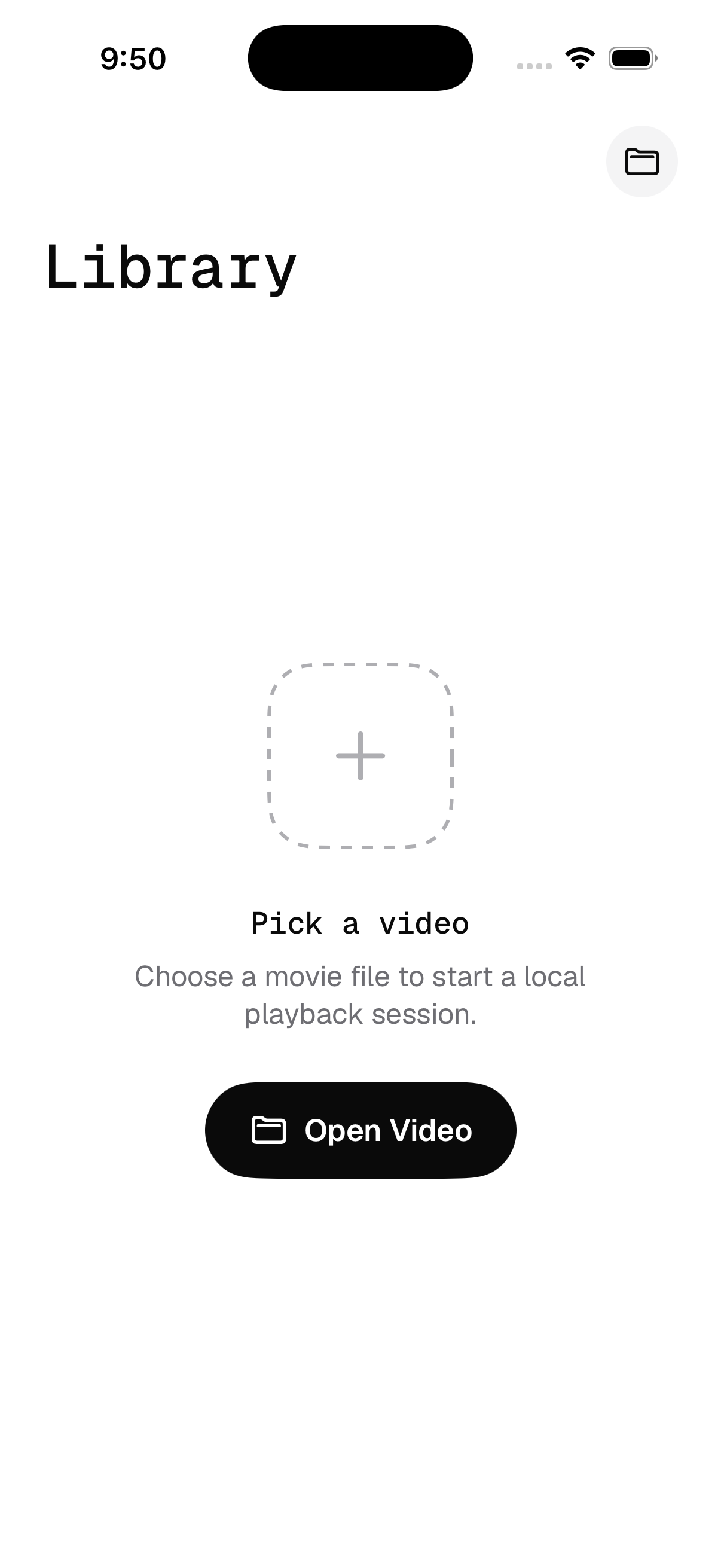
DropPlay’s empty library inviting you to pick a video
01

Just drop it in. Press play.

AirDrop a clip, open it from Files, or import from Photos. DropPlay picks it up and starts a local playback session instantly — no transcoding, no waiting, no setup.

  • Receives videos via AirDrop & the share sheet
  • Opens from Files and the Photos library
  • Plays straight off your device
The DropPlay library list with a saved video, its date and duration
02

Your whole watchlist, one tap away.

Every video you open lands in a clean, monospaced library — name, date, and length at a glance. Pick up where you left off without digging through folders.

  • A tidy list of everything you’ve added
  • Duration and date on every row
  • Tap to jump straight back into playback
A video playing with AirPlay, Share to LAN, and Play controls
03

Watch here, or beam it anywhere.

Keep it on your phone, pop it out as Picture-in-Picture, or send it to an Apple TV or AirPlay speaker. The same video, the screen you want it on.

  • AirPlay to Apple TV & compatible displays
  • Picture-in-Picture while you do other things
  • Playback survives navigating between screens
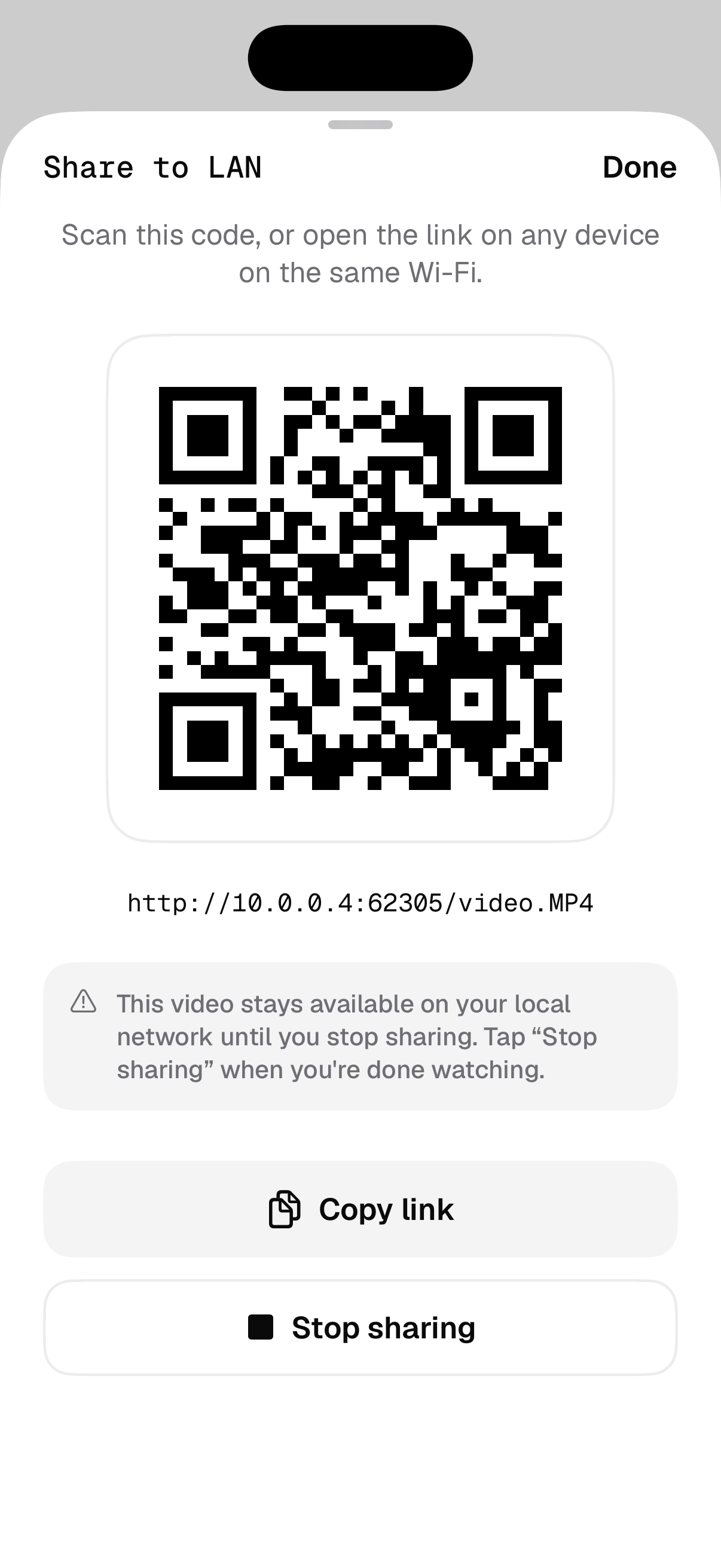
A Share to LAN sheet with a QR code and a local streaming link
04

Scan it. Stream it. Done.

Share to LAN spins up a tiny local server and a QR code. Scan it from a laptop, tablet, or smart TV on the same Wi-Fi and the video plays there — no upload, no link that leaves your network.

  • QR code + copyable local link
  • Stays on your network until you stop sharing
  • Lets other devices play formats your phone can’t

How it works

Share → library → any screen.

Three steps, and you never touch a cable or a cloud upload.

  1. 1

    Share a video to DropPlay

    AirDrop it from a Mac or another iPhone, or pick it from Files or Photos. It’s ready the moment it arrives.

  2. 2

    It lands in your library

    DropPlay saves a reference with its name, date, and length — your videos, neatly in one place.

  3. 3

    Play, cast, or stream

    Watch on the phone, AirPlay to the TV, or share to your Wi-Fi and scan to watch on any nearby screen.

Why DropPlay

Built for the videos that won’t just play.

Plays what others can’t

Hit a container your phone can’t decode, like Matroska (.mkv)? DropPlay still ships the bytes to a device that can — via AirPlay or Wi-Fi — so the video plays anyway.

Local-first & private

Your videos stay on your device. Streaming happens over your own Wi-Fi and shuts off the moment you stop sharing. No accounts, no cloud, nothing uploaded.

Casts & pops out

AirPlay to the big screen or float the video in Picture-in-Picture while you keep scrolling. Playback keeps going as you move around the app.

Scan to watch

A QR code and a copyable link make it effortless to send a video to a laptop, tablet, or smart TV on the same network — no app required on the other end.

Drop your first video in.

DropPlay is launching for iPhone and iPad on iOS 17 and later.

FAQ

Good questions.

How do I get a video into DropPlay?

AirDrop it from a Mac or another iPhone and choose DropPlay, open it from the Files app, or import it from Photos. It appears in your library right away.

It says my video can’t play on the phone. Now what?

Some containers — like Matroska (.mkv) — can’t be decoded directly on iPhone, even when the video inside is fine. DropPlay keeps casting and Wi-Fi streaming available so a device that can decode the file plays it for you.

Does my video get uploaded anywhere?

No. Everything stays on your device. When you Share to LAN, the video is served only over your local Wi-Fi and only until you tap “Stop sharing.”

What do I need on the other device to stream?

Just a browser on the same Wi-Fi network. Scan the QR code or open the link — no app or account required on the receiving end.

Which devices is DropPlay for?

iPhone and iPad running iOS 17 or later.